InerTrak® for iPhone Mobile Time Tracking Software
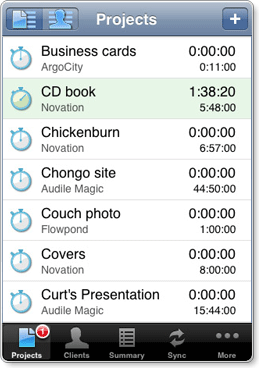
- Accurate time tracking
- Easy to use—tap to start and tap to stop
- Sort by client or project
- Add notes to projects
- Sync to desktop version (purchased separately)

Accurate time tracking is an important part of project management, whether you are a designer, a lawyer, a contract worker, or anyone else who works on multiple projects on an hourly basis.
InerTrak is a powerful, easy-to-use time tracking program that automatically keeps track of the time you spend on different projects thorughout the day; all you do is click to start and stop the timer.
You can see the daily totals for each project, check off days as they are billed, add notes and view a summary that includes the overall totals for each project.
Each project can include an hourly rate, automatically showing the monetary as well as time totals.